
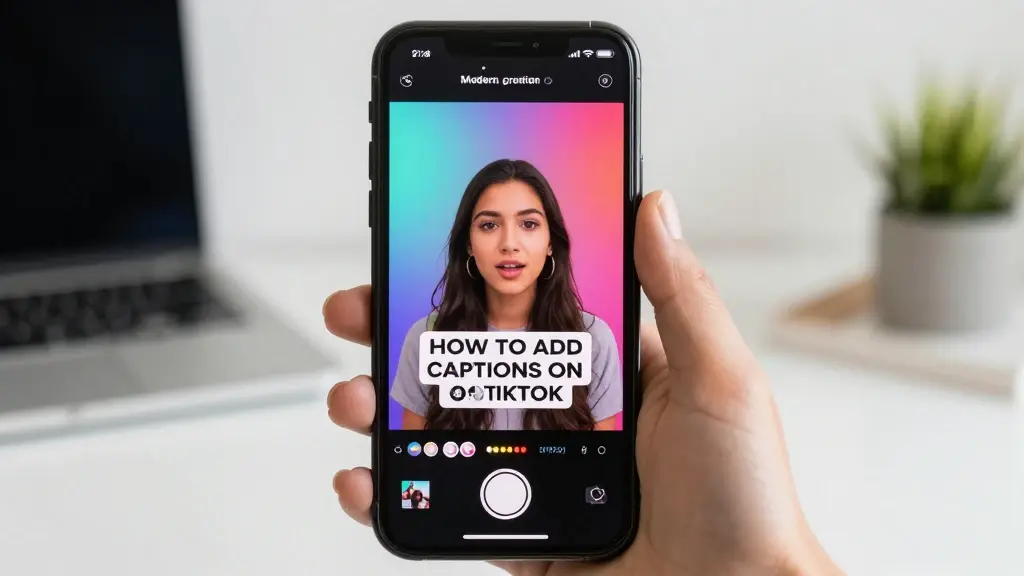

Want to know how to add captions on TikTok? TikTok lets you add text captions to your videos in a few simple steps.
You can use automatic captions to turn spoken words into text, or you can add your own text manually.
Captions can make your videos easier to follow, especially for people watching without sound.
if you’re posting a talking video, tutorial, story, vlog, funny clip, or short Reel-style video, captions can help viewers understand what you’re saying.
You can also change the text style, position, timing, and appearance to fit your video.
In this guide, you’ll learn how to add captions on TikTok, edit automatic captions, add text manually, change caption timing, and fix common caption problems.
What Are Captions on TikTok?
TikTok captions are text that appears on your video while people watch it. They can show the words you say, explain what is happening, or add extra information to your video.
There are two common ways to add captions on TikTok:
- 📝 Automatic captions: TikTok creates text from the speech in your video.
- ✍️ Manual text: You type the words yourself and place them anywhere on the video.
Automatic captions are useful when you are talking in a video because TikTok can create the text for you. Manual text is better when you want to add a title, joke, quote, instruction, or other information.
You can also use both methods in the same video when needed.
How to Add Automatic Captions on TikTok
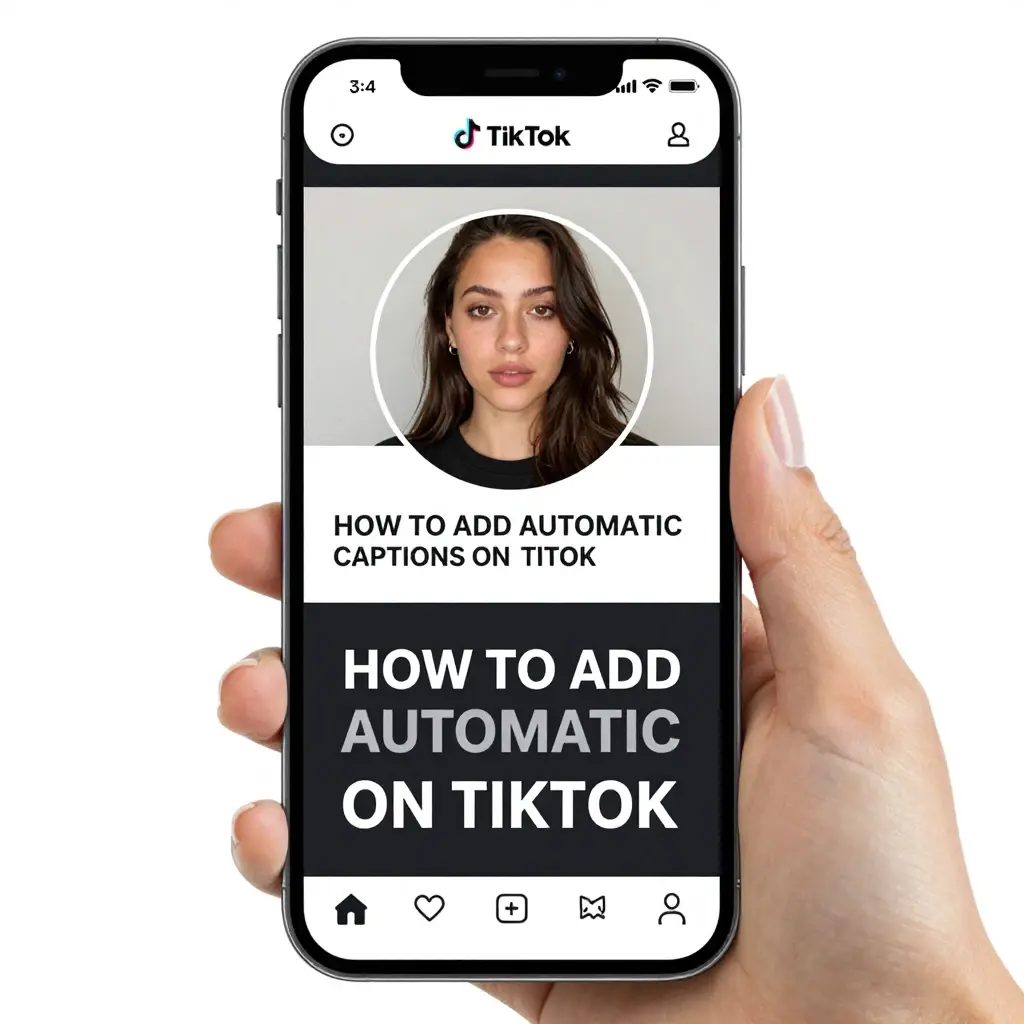
TikTok’s automatic caption feature can create text from spoken words. The exact buttons can vary slightly depending on your app version and device.
Follow these basic steps:
- 📱 Open TikTok.
- ➕ Tap the + button.
- 🎥 Record a video or upload one from your phone.
- ✏️ Continue to the editing screen.
- 📝 Look for Captions or the caption option.
- ⚙️ Let TikTok process the spoken audio.
- 👀 Review the generated text.
- ✏️ Correct any mistakes.
- ✅ Save or continue editing your video.
- 🚀 Post your video when you’re ready.
Always check automatic captions before posting. Background noise, accents, fast speech, or unclear audio can cause TikTok to recognize some words incorrectly.
How to Add Captions to a TikTok Video
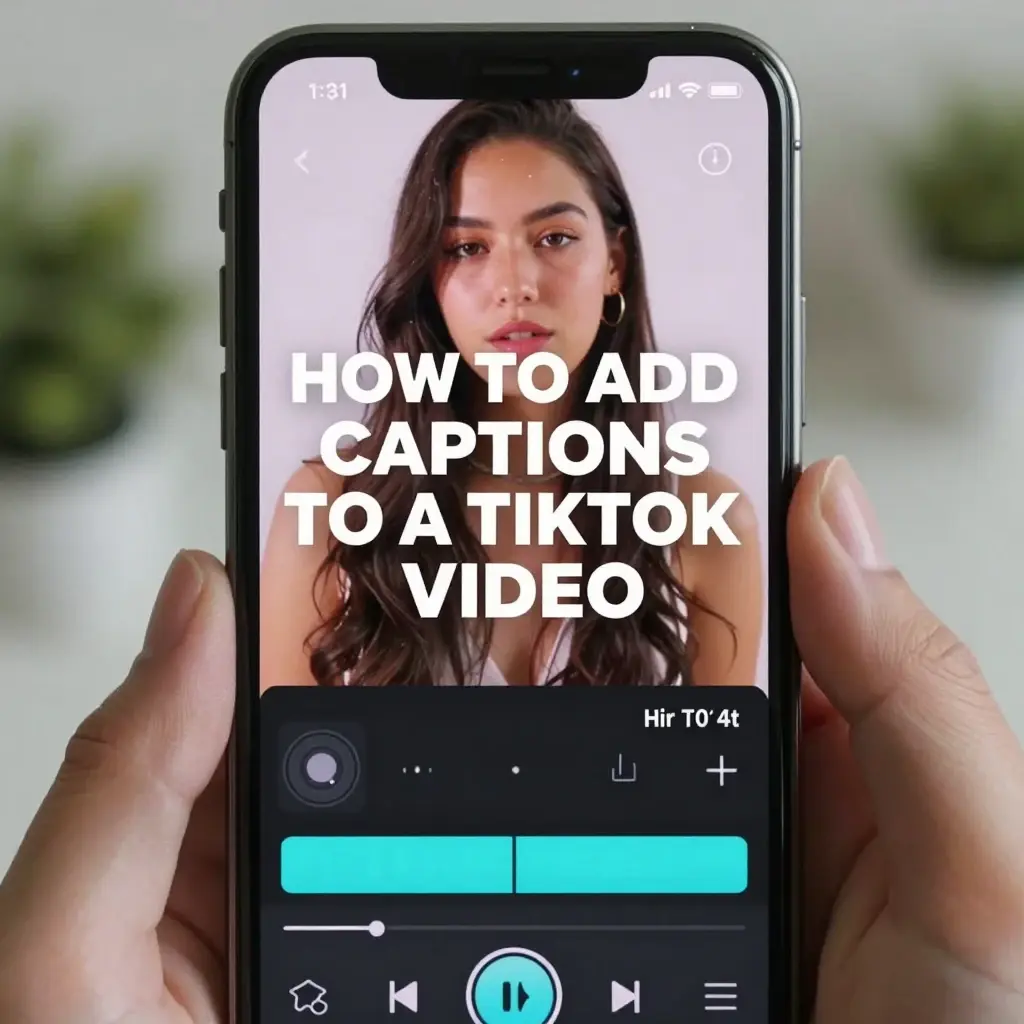
If you want words to appear directly on your video, you can add text through TikTok’s editing tools.
- 📱 Open TikTok.
- ➕ Start a new post.
- 🎥 Record or upload your video.
- ✍️ Tap Text in the editing tools.
- ⌨️ Type your caption.
- 🎨 Choose a text style.
- 📍 Move the text to the position you want.
- ⏱️ Adjust when the text appears.
- 👀 Preview the video.
- ✅ Save your changes.
This method is useful for captions that are not necessarily spoken words.
For example, you could add:
- 😂 A funny joke
- 💡 A quick tip
- ❤️ A quote
- 🛍️ Product information
- 📍 A location
- 🎬 A video title
How to Add Auto Captions to TikTok
Auto captions are helpful when your video contains speech. TikTok uses speech recognition to create text based on the audio.
To use them:
- 🎥 Upload or record your video.
- 📝 Open the editing tools.
- 🔤 Select Captions if the option appears.
- ⏳ Wait for TikTok to process the audio.
- 👀 Read through the captions.
- ✏️ Edit incorrect words.
- ✅ Save the corrected captions.
Automatic captions can save time because you don’t have to type every sentence yourself.
However, you should always proofread them. Names, slang, technical words, and unclear speech may be transcribed incorrectly.
How to Add Captions to a TikTok After Recording
You don’t have to add text while recording your video. You can add it during the editing stage.
After recording:
- 🎥 Finish your video.
- ➡️ Go to the editing screen.
- ✍️ Tap Text.
- ⌨️ Enter your words.
- 🎨 Choose the style you like.
- 📍 Place the text on the screen.
- ⏱️ Set the duration.
- 👀 Watch the preview.
- ✅ Make changes if needed.
- 🚀 Continue to posting.
This is useful because you can watch the finished video first and then decide where text will help viewers most.
How to Change Caption Timing on TikTok
If you add text manually, you can control when it appears and disappears.
This is helpful when you want different lines to appear at different moments.
- ⏱️ Add your text.
- ✍️ Tap the text you added.
- 🕐 Select the option to set its duration.
- 🎬 Adjust the beginning of the text.
- 🎬 Adjust the ending.
- 👀 Preview the video.
- ✅ Save when the timing looks right.
For example, if someone says three different things in a video, you can show a different text line for each part.
Good timing makes captions easier to read.
How to Edit TikTok Captions
Automatic captions may not always be perfect. You can review them and correct mistakes before posting.
Check for:
- 🔤 Spelling errors
- 🗣️ Misheard words
- 👤 Names
- 📍 Places
- 🔢 Numbers
- 😂 Slang
- 🧑💻 Technical terms
- ❌ Missing words
If TikTok creates the wrong caption, edit the text before publishing.
This small step can make your video much easier to understand.
How to Add Text Instead of Auto Captions
Sometimes you don’t need full subtitles. You may only want a few words on screen.
For example:
“Wait for the ending 👀”
or
“3 things I wish I knew sooner.”
To do this:
- 🎥 Create your video.
- ✍️ Select Text.
- ⌨️ Type your message.
- 🎨 Pick a style.
- 📍 Place it where viewers can see it.
- ⏱️ Set the timing.
- 👀 Preview it.
- ✅ Save it.
Manual text gives you more control over what viewers see.
How to Make TikTok Captions Easy to Read
Adding captions is only part of the job. They should also be easy to read.
Try these simple tips:
- 👀 Use clear text.
- 🔠 Keep the font large enough.
- 📱 Avoid placing text too close to the edges.
- 🎥 Don’t cover important parts of the video.
- ⏱️ Give viewers enough time to read.
- 📝 Keep each line short.
- 🔊 Make sure captions match the speech.
- ✨ Use a style that fits your video.
Avoid putting too much text on the screen at once. Short lines are easier to follow, especially on a small phone screen.
How to Add Captions to TikTok Videos Without Speaking
You can add text even when your video has no spoken audio.
For example, you might make:
- 🌅 A travel video
- 🍳 A cooking video
- 👗 An outfit video
- 🏋️ A workout video
- 😂 A meme
- 🎮 A gaming clip
- 🐶 A pet video
- 📸 A photo slideshow
Use the Text tool to add words to the video.
You can explain what is happening, add a joke, provide instructions, or tell a short story through text.
How to Add Captions to TikTok Photo Posts
TikTok also allows photo-based posts. You can use text to add information or context to your images.
For example:
- 📸 Add your photos.
- ✍️ Use the text option if available.
- 📝 Add a short message.
- 🎨 Choose a readable style.
- 📍 Place the text carefully.
- 👀 Preview the post.
- 🚀 Publish it.
Photo posts can benefit from short text because viewers can understand the main idea without needing audio.
How to Add Captions to TikTok for Accessibility
Captions can make videos easier to follow for people who cannot hear the audio or who prefer reading along.
For better accessibility:
- 📝 Caption spoken words accurately.
- 🔤 Check spelling.
- 👀 Use readable text.
- 🎨 Make sure text stands out from the background.
- ⏱️ Keep captions on screen long enough.
- 🔊 Include important sound information when needed.
- 📱 Keep text away from areas covered by TikTok controls.
Accessibility is not just about adding words. Captions should be accurate and easy to read.
Why Should You Add Captions on TikTok?
Captions can make your content easier to understand and follow.
Some benefits include:
- 👀 People can follow along while reading.
- 🔇 Viewers can understand speech when sound is off.
- 📝 Important information is easier to remember.
- 🌍 Captions can help people who have difficulty hearing.
- 🎥 Talking videos become easier to follow.
- 💡 Tutorials can be clearer.
- ❤️ Stories can feel more engaging.
- 📱 Text can quickly explain the video’s main idea.
Captions are especially useful when your video depends on spoken information.
Automatic Captions vs. Manual Text on TikTok
These two options serve different purposes.
| Feature | Automatic Captions | Manual Text |
| 🗣️ Spoken words | Great | You type them |
| ✍️ Custom messages | Limited | Great |
| ⏱️ Timing | Speech-based | Full control |
| 🎨 Creative text | Limited | More control |
| ⚡ Speed | Faster | Takes more time |
| 📝 Subtitles | Useful | Possible |
| 😂 Jokes and titles | Less useful | Great |
If your video is someone talking, automatic captions can save time. If you want a title, joke, or callout, manual text may be better.
You can also combine both.
Common TikTok Caption Problems
Sometimes the caption feature may not work the way you expect.
Here are common problems:
- ❌ The caption button is missing.
- ❌ Words are incorrect.
- ❌ Captions do not match the audio.
- ❌ Text disappears too quickly.
- ❌ Text covers part of the video.
- ❌ Captions are hard to read.
- ❌ The app does not process the audio correctly.
- ❌ Your TikTok app looks different from a tutorial.
TikTok regularly changes its interface and features. If your screen looks different, check the latest version of the app and look through the video editing tools.
What to Do If TikTok Captions Are Not Showing
If automatic captions are not appearing, try a few basic fixes.
- 📱 Update TikTok.
- 🔄 Close and reopen the app.
- 🎥 Try another video.
- 🔊 Make sure the audio is clear.
- 🌐 Check your internet connection.
- ⚙️ Review TikTok’s available editing options.
- 🧹 Clear the app cache if the option is available.
- 📲 Restart your phone.
- 🔍 Look for the caption option in the editing screen.
Features can vary by account, device, region, app version, and video.
If a particular caption feature is unavailable, manual text can often be used as an alternative.
Tips for Better TikTok Captions
Good captions should help rather than distract from your video.
- 📝 Keep sentences simple.
- 👀 Make text easy to read.
- ⏱️ Match text timing with speech.
- 🔤 Proofread automatic captions.
- 🎯 Highlight important words.
- 📱 Keep text away from interface buttons.
- 🎨 Choose a readable style.
- 🗣️ Caption important spoken content.
- ✂️ Break long sentences into smaller parts.
- ❤️ Make captions match your video’s mood.
Think about how quickly someone can read the text while watching your video. If they have to pause to understand it, the caption may be too long.
FAQs:
Q1. How do I add captions on TikTok?
Open TikTok, create or upload a video, go to the editing screen, and look for Captions or Text. Choose automatic captions for spoken audio or add your own text manually.
Q2. How do I turn on automatic captions on TikTok?
Create or upload a video and look for the Captions option in the editing tools. TikTok can then generate captions from the video’s spoken audio when the feature is available.
Q3. Can I add captions to a TikTok after recording?
Yes. After recording or uploading a video, you can use TikTok’s editing tools to add automatic captions or manually add text.
Q4. How do I add text to a TikTok video?
After recording or uploading your video, select Text, type your message, choose a style, position it on the screen, and adjust its duration if needed.
Q5. Can I edit TikTok’s automatic captions?
Yes. When automatic captions are generated, review them carefully and correct mistakes before publishing when the editing option is available.
Q6. Why are my TikTok captions wrong?
Automatic captions use speech recognition, so background noise, unclear speech, accents, names, slang, and fast talking can cause mistakes. Always review the generated text.
Q7. Can I add captions to a TikTok without speaking?
Yes. You can use the Text tool to add written words to videos that have no spoken audio.
Q8. Why can’t I find the captions option on TikTok?
TikTok features can vary by app version, device, account, region, and content type. Update the app and check the editing tools. If automatic captions are unavailable, you can use manual text instead.
Conclusion:
Learning how to add captions on TikTok is simple once you know where to look. For spoken videos, automatic captions can turn your speech into text. For titles, jokes, instructions, and other messages, you can add text manually and control where and when it appears.
Always check your captions before posting. Automatic transcription can make mistakes, and poorly timed text can be hard to follow. Keep your words short, clear, and easy to read.
Whether you’re creating a tutorial, vlog, funny video, story, photo post, or simple TikTok Reel, captions can help viewers understand your content and follow along more easily.

Connor Whitaker brings 20 years of writing experience to social media content, with a focus on practical and engaging caption ideas.